Dream-Assurance-Logo-800

At Dream Assurance, we take great pride in offering top-notch customer service and equipping our clients with the necessary tools for their success. One such tool is our 24/7 self-service COI portal, which ensures that you’ll never miss a load due to the lack of a COI. Best of all, this service is entirely free.

Step 1:

With our COI portal, you can generate and send as many certificates of insurance as you require. It’s conveniently accessible from both your iPhone and computer. Sending COIs to those requesting them is a breeze – just follow our simple setup instructions, and within minutes, you’ll be creating your own COIs.

Once you’ve set up your 24/7 COI portal, you can revisit it anytime by accessing the link: https://www.nowcerts.com/. We recommend bookmarking and saving this link on your iPhone and/or computer for quick access.

Step 2: Set Up Login

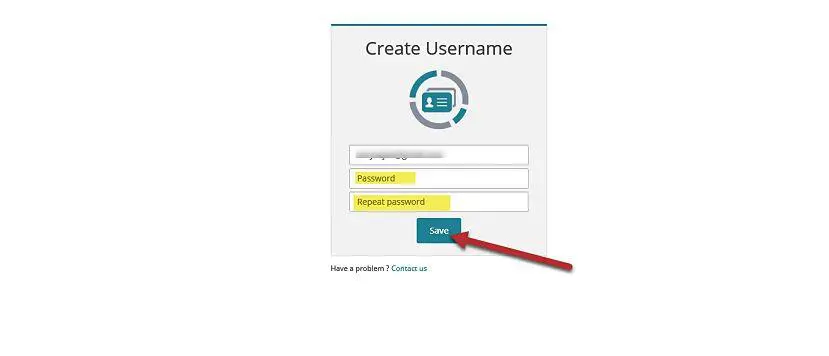
coi-step-2
  1. Create your password and click “Save”
  2. Your username is your email address.

Step 3: Send COI

coi-step-3

Click on “Send Certification“, in the top right.

Step 4: Enter COI Holders Information

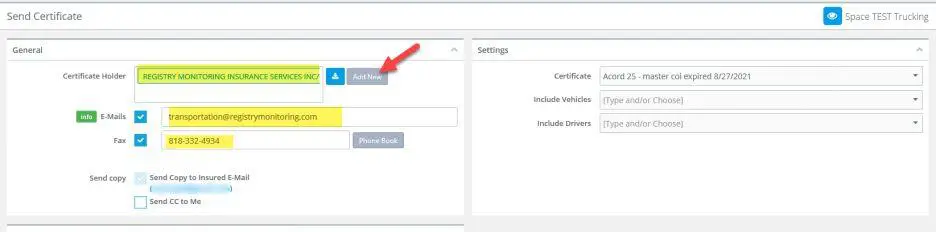
coi-step-4

Enter Name and Address of the company you are creating the COI for.

This Information Will Be Saved.

Step 5: Add Vehicles

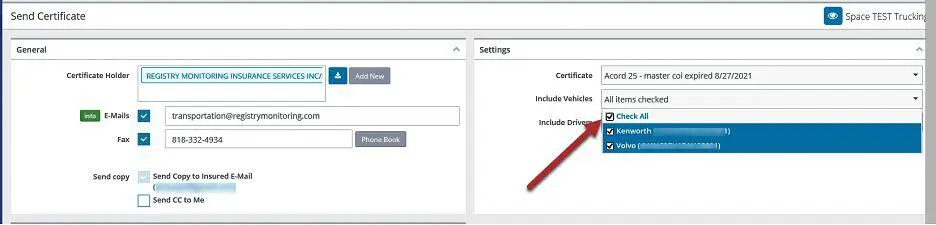
coi-step-5

Add Vehicles on this page.

Step 6: Send COI

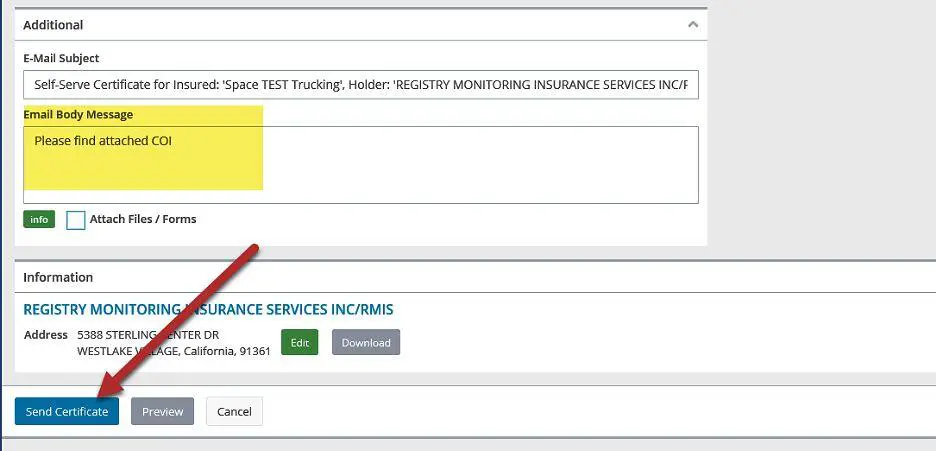
coi-step-6
  1. The subject line is filled for you or you can change it.
  2. You may enter a message to COI “Email Body Message“.
  3. To send your COI. Click “Send Certificate
  4. Your COI will be sent the certificate holder you just set up and you will receive a copy for you records.
  5. You may log back into your client portal at anytime to review sent COIs and send new ones.
 

Step 7: Confirmation

To review COI’s sent:

  1. Click on “Other” on the right side of the page
  2. Then click “Cerificates Sent”
  3. This will show your list of COI’s you have sent.
COI Steps